

In a world where talking to your phone feels as natural as chatting with a friend, Siri stands out as the ultimate digital companion. With the iPhone 12 in hand, unlocking this virtual assistant’s full potential can turn mundane tasks into a breeze. Whether it’s setting reminders, sending texts, or finding the best pizza nearby, Siri’s got your back—if you can just get her to wake up.
Understanding Siri on iPhone 12
Siri serves as an intelligent digital assistant, enhancing the overall user experience on the iPhone 12. Understanding its features allows users to leverage Siri’s full potential for daily tasks.
What Is Siri?
Siri is a voice-activated assistant developed by Apple. Capable of understanding natural language, it executes various commands and answers questions. Users can initiate conversations with Siri through voice or by pressing buttons. Moreover, Siri integrates with numerous applications, enabling smooth transitions between tasks. Functionality includes sending messages, setting reminders, and controlling smart home devices. Familiarity with these capabilities equips users to navigate their iPhone 12 effectively.
Benefits of Using Siri
Using Siri streamlines everyday tasks, making it an invaluable tool for iPhone 12 users. Voice commands allow for hands-free operation, enhancing multitasking capabilities. Efficiency increases as Siri enables quick access to information, reducing response time for web searches. Location-based services enhance convenience when seeking nearby places, such as restaurants. Timeliness is prioritized with the ability to set alarms or schedule appointments effortlessly. Overall, Siri enhances productivity and simplifies daily activities, making it a must-have feature for modern users.
How to Enable Siri on iPhone 12
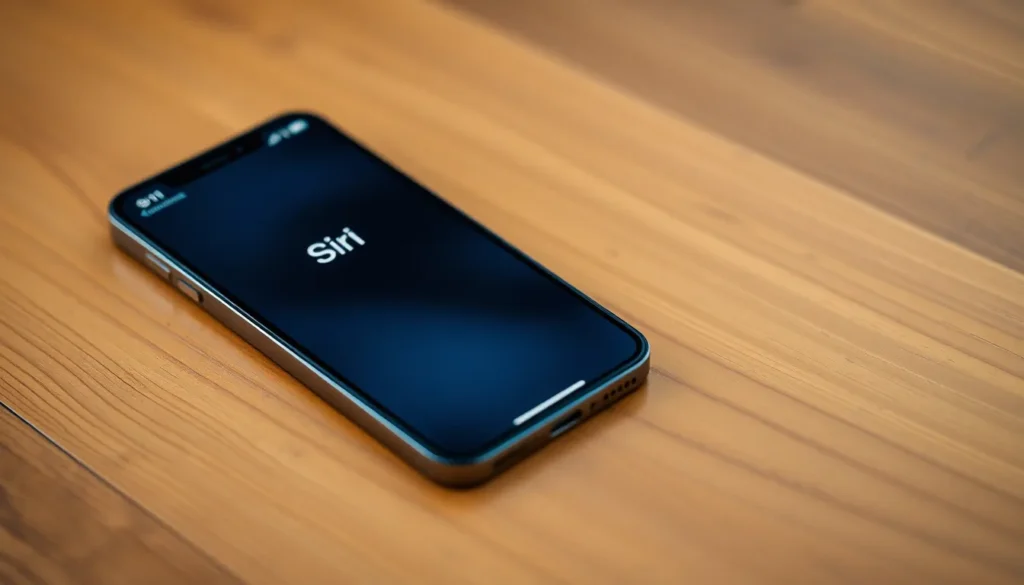
Enabling Siri on the iPhone 12 allows users to access a powerful digital assistant. Two primary methods for activation exist, and understanding both ensures optimal usage.
Through Settings App
Access the Settings app by tapping the gear icon on the home screen. Scroll down to find and select “Siri & Search.” Toggle on the options for “Listen for ‘Hey Siri'” and “Press Side Button for Siri.” After enabling these features, a prompt guides users to set up “Hey Siri,” allowing for voice activation. Users can follow on-screen instructions to help Siri recognize their voice effectively.
Using Voice Activation
Voice activation provides a hands-free way to engage Siri. Simply say “Hey Siri” followed by the command or question. Ensure the feature is enabled in the Settings app for this to work. When using voice activation, proximity to the device matters; being close to the iPhone helps Siri process spoken commands accurately. This feature enhances convenience during multitasking or while driving.
Troubleshooting Siri Activation Issues
Siri activation issues can interrupt a smooth user experience. Identifying common problems can help resolve these issues quickly.
Common Problems
Siri sometimes fails to respond to voice commands. This often occurs when the device’s microphone is blocked or dirty. Additionally, users might struggle with Siri not recognizing their voice or commands. Network connectivity problems can also hinder Siri’s performance. Users may find that Siri doesn’t activate when expected, especially under noisy conditions. These factors can limit access to Siri’s features and diminish its effectiveness.
Solutions and Tips
To fix microphone issues, ensure it’s clean and clear of obstructions. Restarting the iPhone can reset settings and improve functionality. Updating the iOS version may resolve software bugs affecting Siri. Checking network connection stability can enhance Siri’s responsiveness. Make sure “Hey Siri” is set up correctly in the Settings app. If problems persist, resetting network settings can often help restore Siri’s capabilities.
Alternative Ways to Access Siri
Users can engage Siri through several alternative methods. These options offer convenience and flexibility based on individual preferences.
Using Side Button
Pressing and holding the Side Button activates Siri quickly. Upon pressing, a Siri interface appears on the screen. This method allows for precise command input, enabling users to ask for various tasks like setting reminders or asking for directions. Releasing the button deactivates Siri after a voice command, making it a straightforward option for quick access.
Using EarPods or Headphones
Utilizing EarPods or headphones with a built-in microphone also provides a hands-free way to access Siri. A simple double-tap on the EarPods’ center button activates Siri immediately. This method ensures users can make inquiries or send messages while on the go. Many users find this option particularly helpful during workouts or commutes.
Activating Siri on the iPhone 12 opens up a world of convenience and efficiency. By understanding the various methods for enabling this powerful assistant users can streamline their daily tasks and enhance productivity. Whether through voice activation or the Side Button there’s a method that suits every preference.
Troubleshooting common issues ensures a smooth experience with Siri allowing users to enjoy its full range of features without frustration. Embracing Siri not only simplifies tasks but also transforms the way users interact with their devices. With just a few simple steps anyone can make the most of this intelligent assistant and elevate their iPhone experience.


